Overview
Set the background wallpaper displayed on TV screens. Follow the steps below to complete this task.
📂 Settings - Unit Setting
Beginner
⏱ 3 min
📋 3 steps
Navigate to Wallpaper
Open from sidebar
Go to Settings › Unit Setting › Wallpaper. This page manages background images shown on TV screens when no content is active.
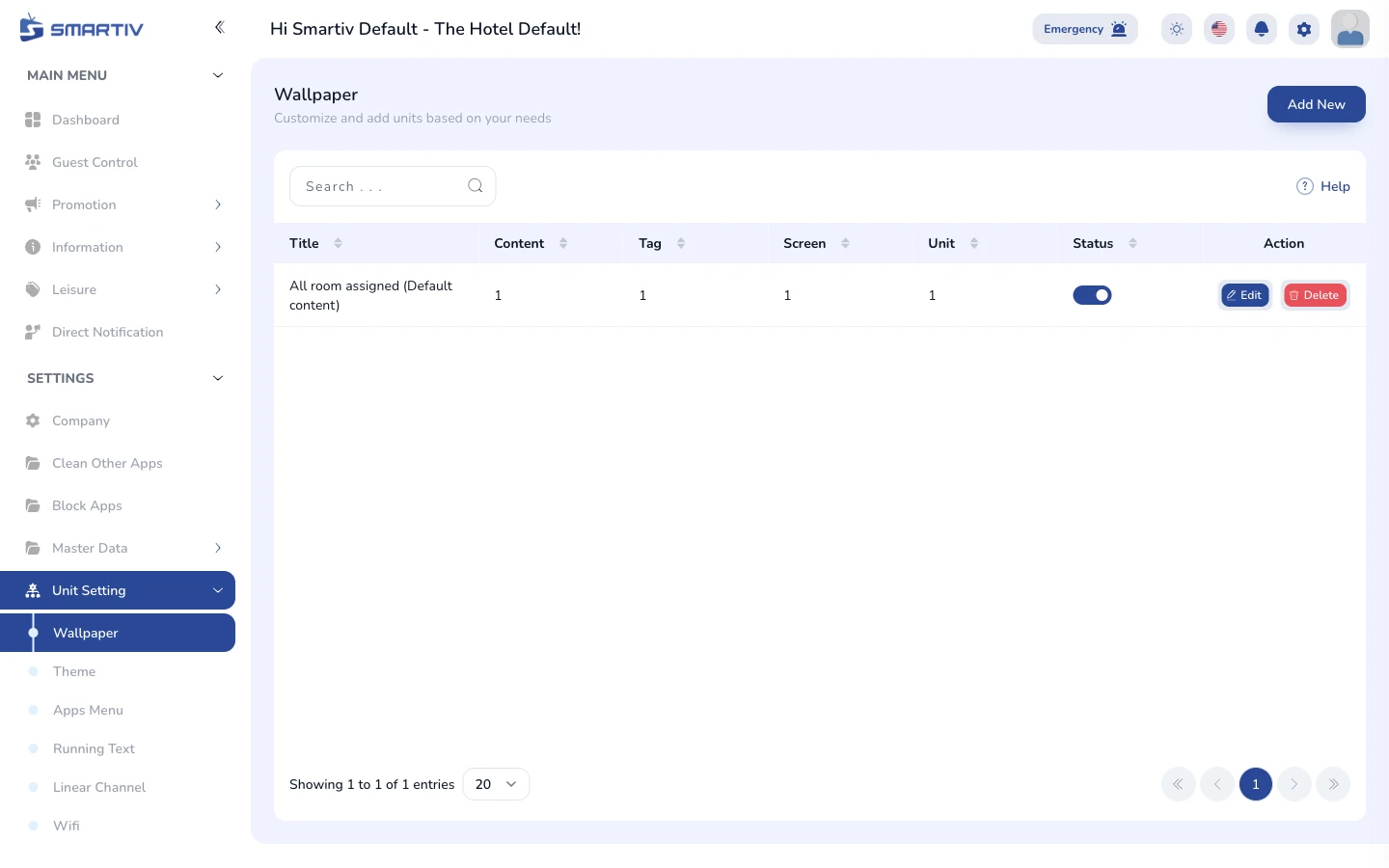
Wallpaper management page.
Add a New Wallpaper
Upload or select an image
Click Add New. Upload an image file or select from the media library. Assign it to specific units or unit types.

Add New button.
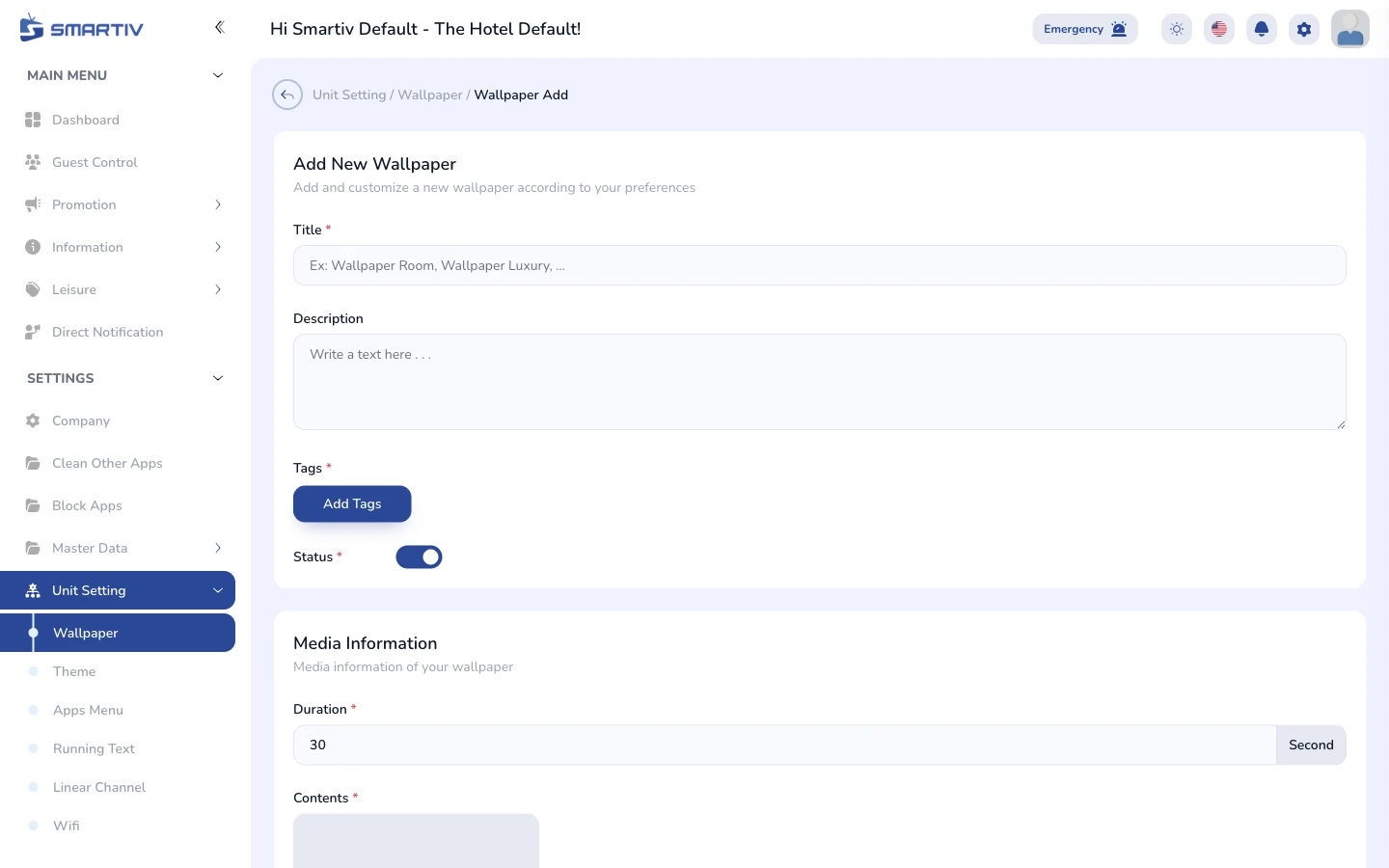
Wallpaper upload modal.
TipUse 1920x1080 px images (16:9 ratio) for best display on TV screens.
Save and Apply
Push wallpaper to TV screens
Click Save. The wallpaper is distributed to all assigned units and appears on screens within a few seconds.
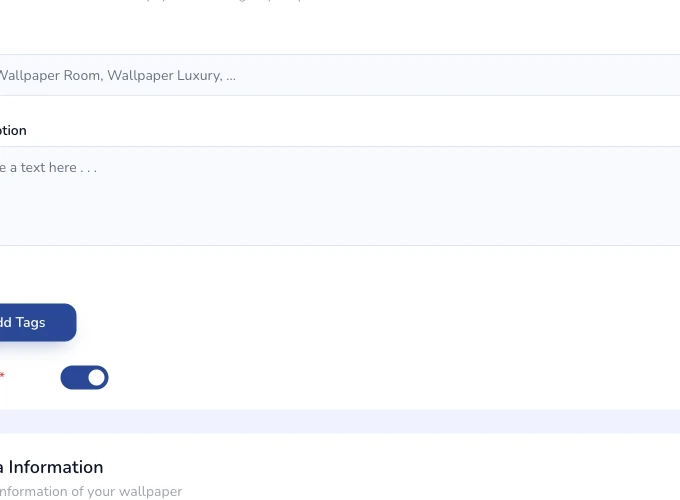
Filled wallpaper form with image selected and units assigned.