Overview
Manage the scrolling ticker text shown on the TV. Follow the steps below to complete this task.
📂 Settings - Unit Setting
Beginner
⏱ 2 min
📋 4 steps
Navigate to Running Text
Open the page from the sidebar
In the left sidebar, expand Settings then Unit Setting and click Running Text. It manages the running ticker text displayed across the TV screen.
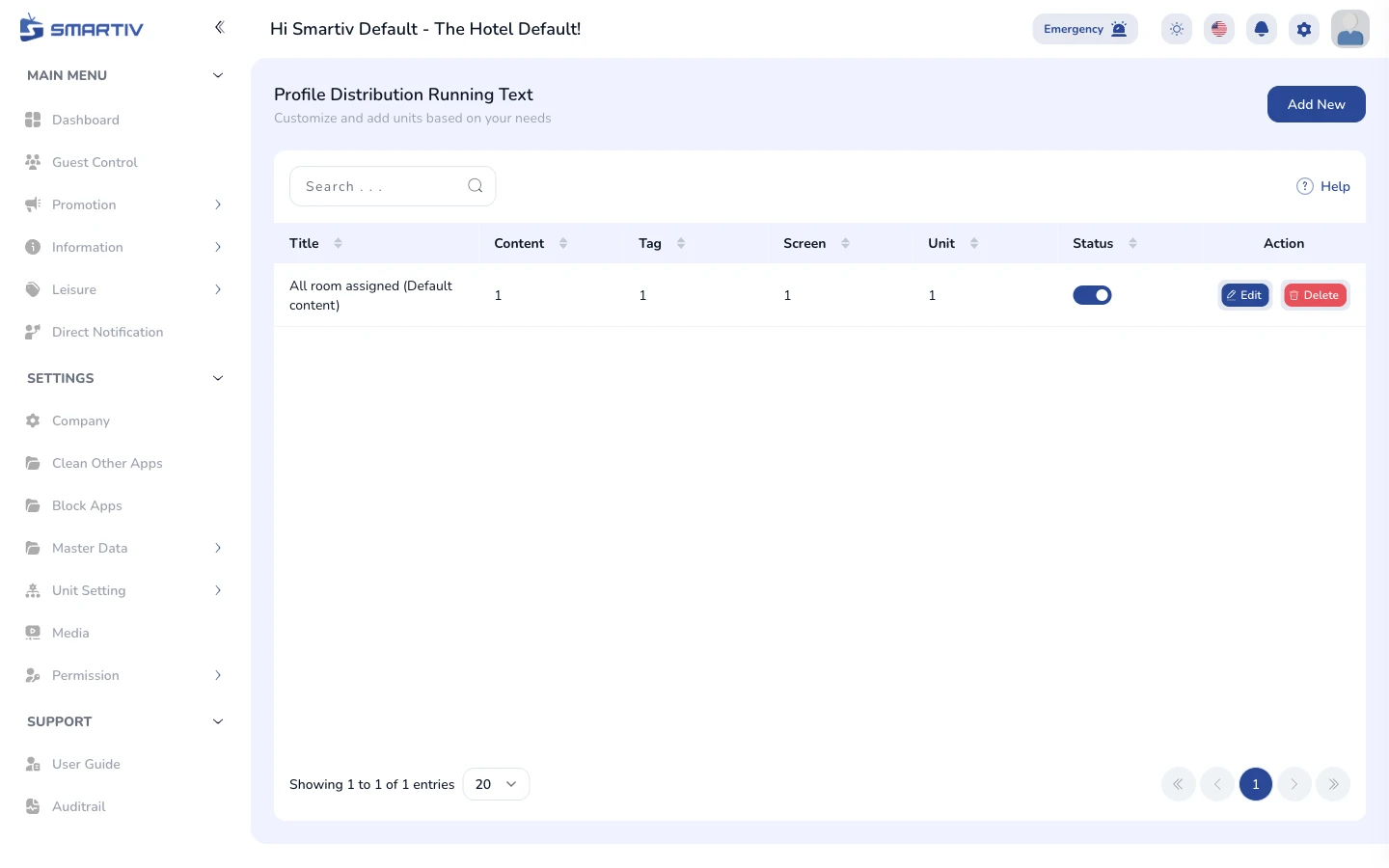
The Running Text page under Settings › Unit Setting.
NoteDirect URL:
/settings/unit-setting/running-textReview the Current Configuration
See what is applied to the TVs
The page shows the active running text entries with their message and target units.
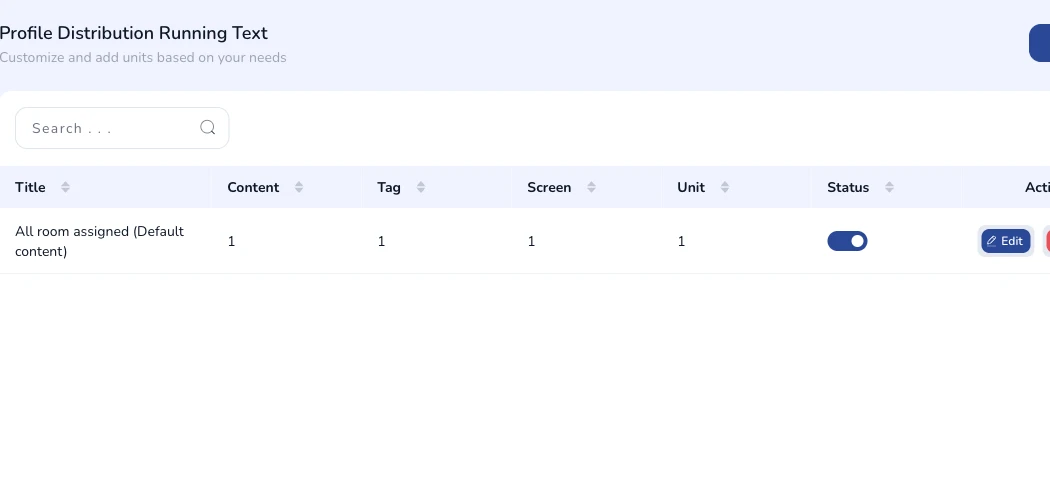
Current running text configuration shown on the page.
Add a New Configuration
Open the creation form
Click the Add New button in the top-right corner. A modal dialog appears with the configuration fields.

The "Add New" button in the top-right corner.
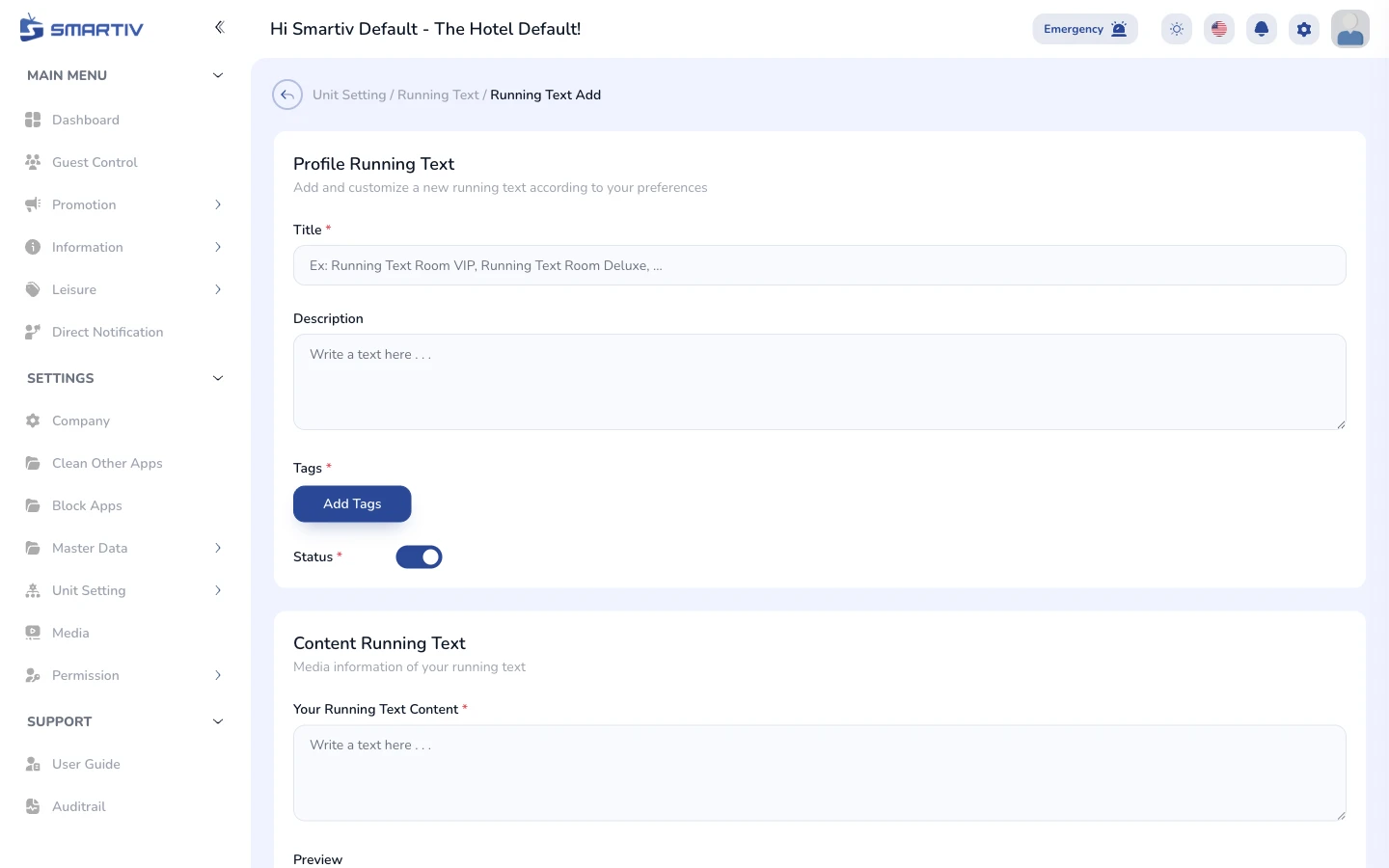
The empty configuration form modal.
Fill In the Form and Save
Complete the fields and submit
Enter the message text and choose the unit type or units where it should appear. Click Save to apply. Changes are pushed to the assigned unit TVs automatically.
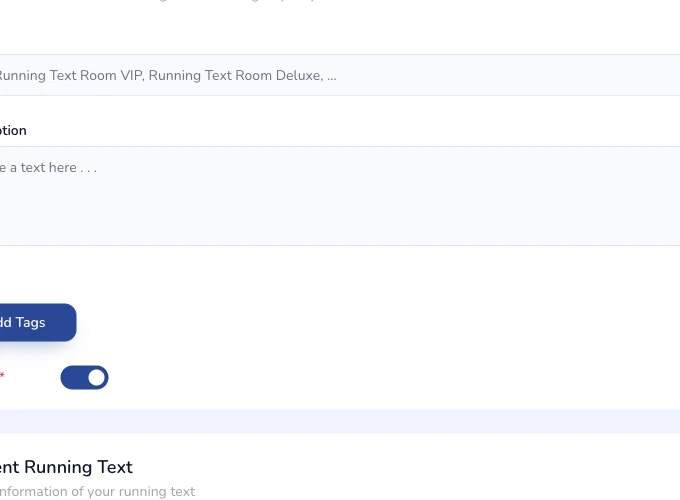
Close-up of the configuration form fields.
TipKeep messages short — long text takes a while to scroll and guests may miss the beginning.