Overview
Configure emergency broadcast profiles for TV screens. Follow the steps below to complete this task.
📂 Settings - Unit Setting
Intermediate
⏱ 4 min
📋 4 steps
Navigate to Emergency
Open from sidebar
Go to Settings › Unit Setting › Emergency. This page manages emergency broadcast profiles that override normal TV content during critical situations.
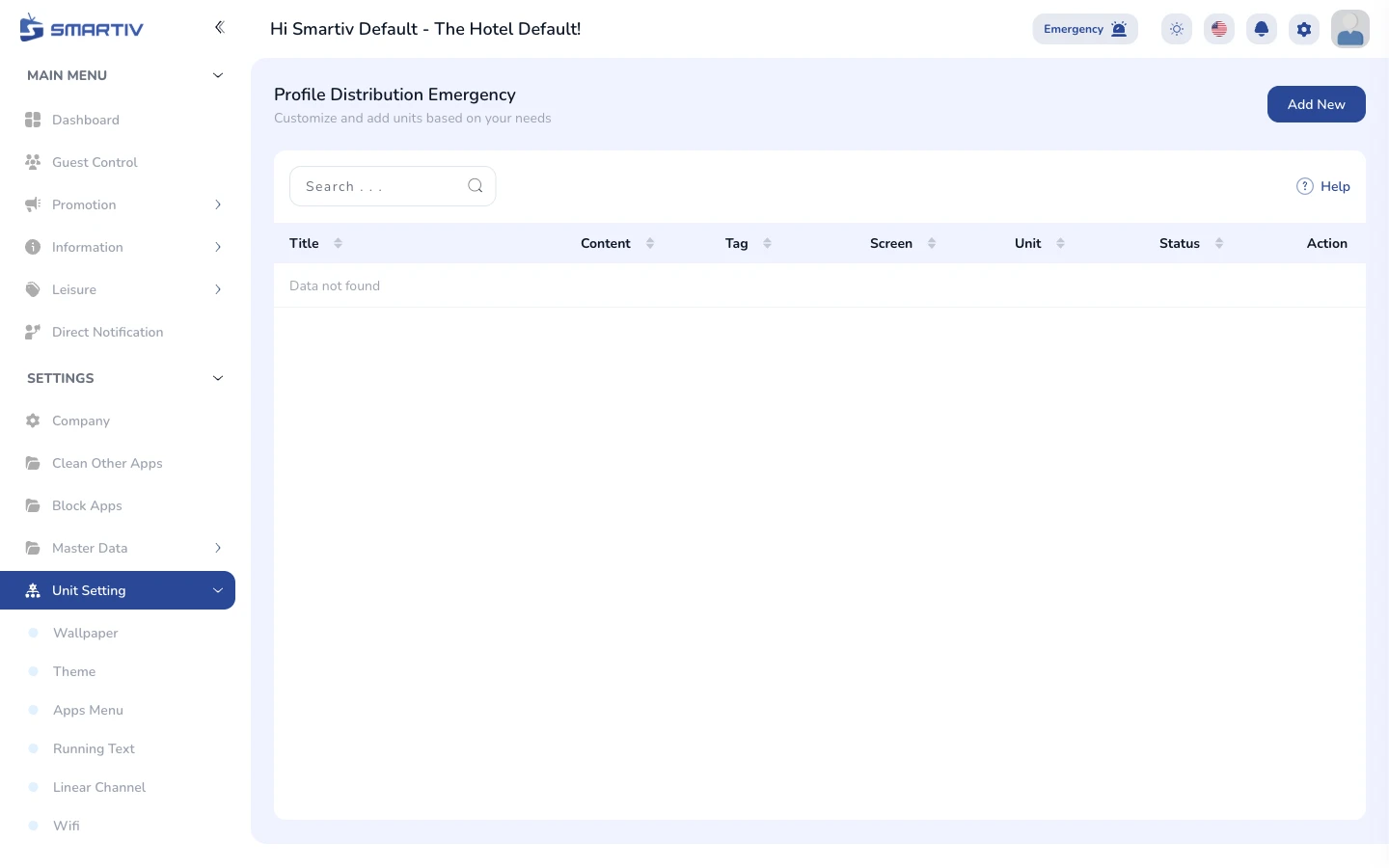
Emergency profile list showing Title, Content, Tag, Screen, Unit, and Status columns.
Review Emergency Profiles
Understand the table
Each profile shows content count, target screens and units, and whether it is currently active (blue toggle = active). Only one profile should be active at a time.
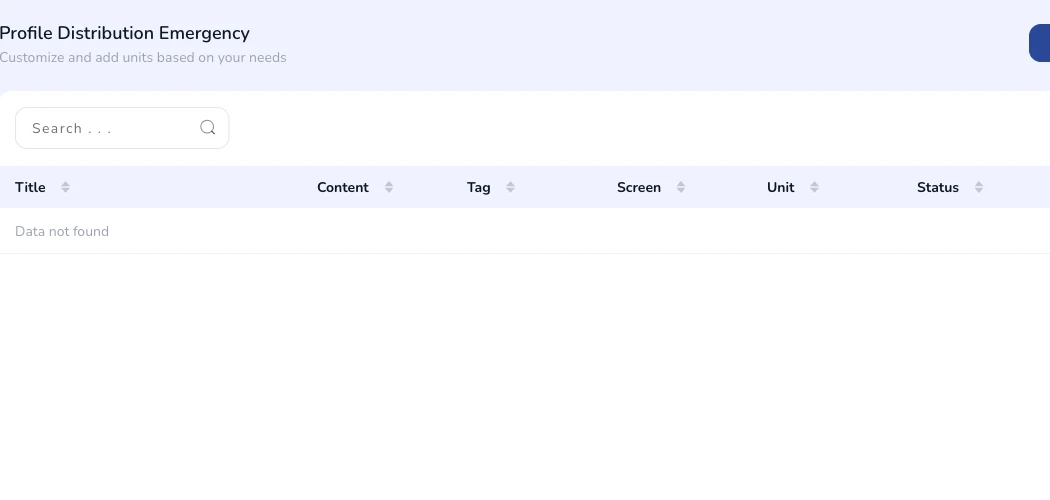
Table with emergency profiles and their active status toggles.
ImportantActivating an emergency profile will immediately override all assigned TV screens. Use with caution.
Add a New Emergency Profile
Create a broadcast profile
Click Add New. Fill in the profile title, assign content, select target screens and units, then save.

Add New button.
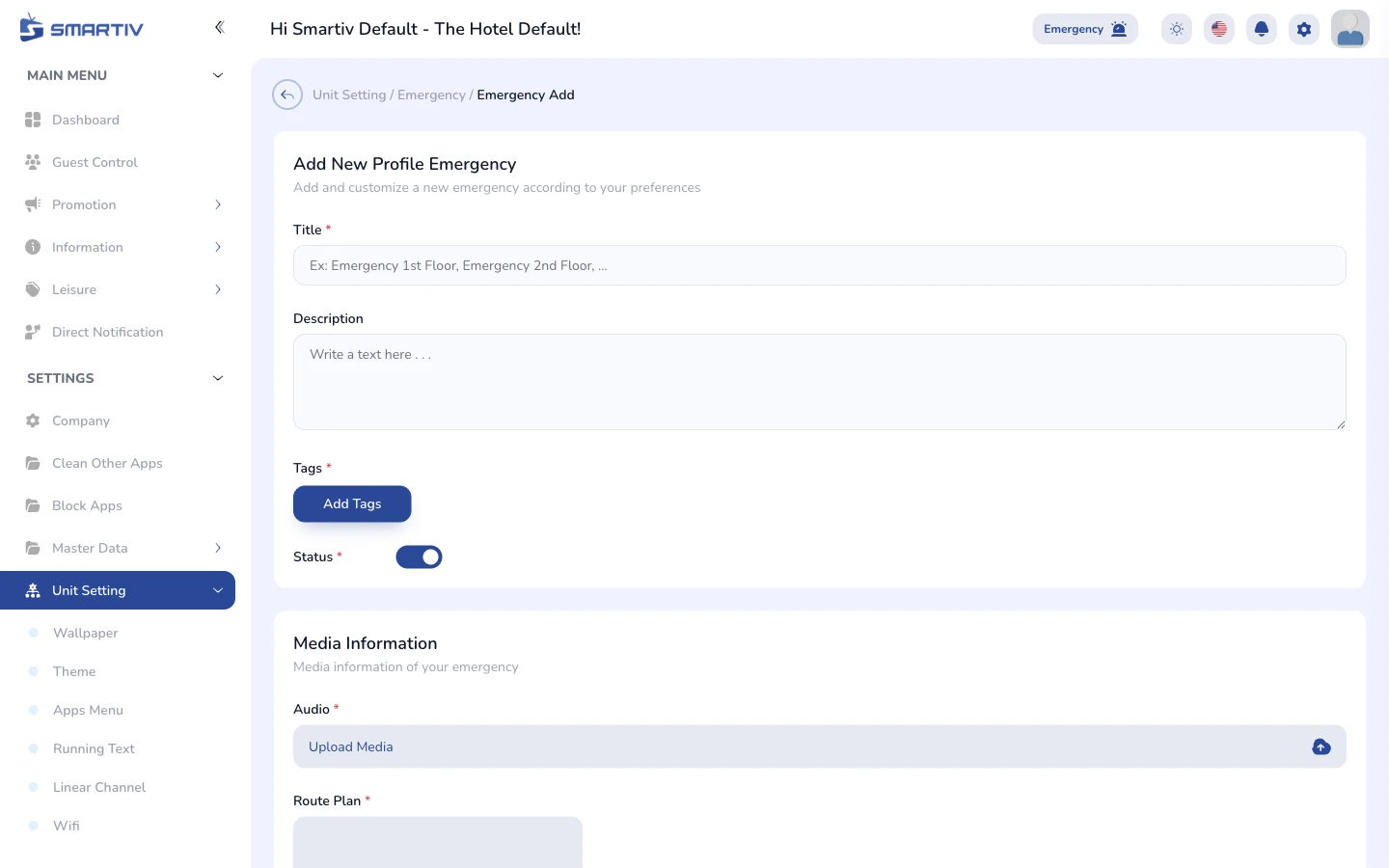
Empty emergency profile creation form.
Activate or Deactivate a Profile
Control broadcast status
Use the toggle switch in the Status column to activate or deactivate an emergency profile. When active, the emergency content takes over all assigned TV screens immediately.
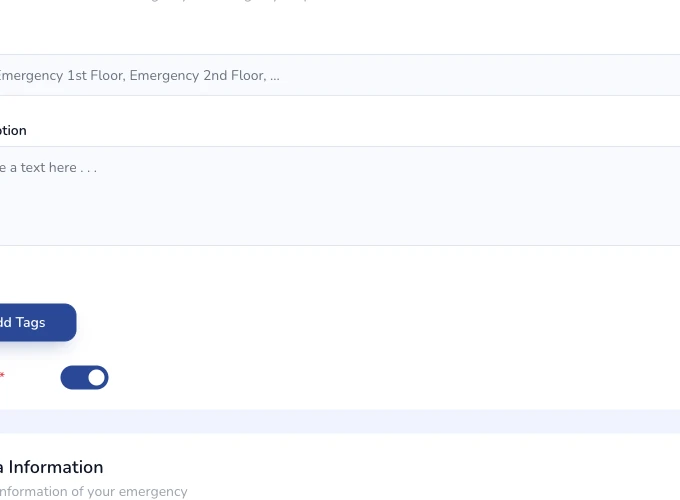
Status toggle switch — blue means active, grey means inactive.
TipTest the emergency profile on a single unit first before activating it property-wide.