Overview
Manage the central media library used across the CMS. Follow the steps below to complete this task.
📂 Settings
Beginner
⏱ 2 min
📋 3 steps
Navigate to Media
Open the media library
In the left sidebar, expand Settings and click Media. The media library stores all images and videos used by other menus such as Promotion, Information, and Wallpaper.
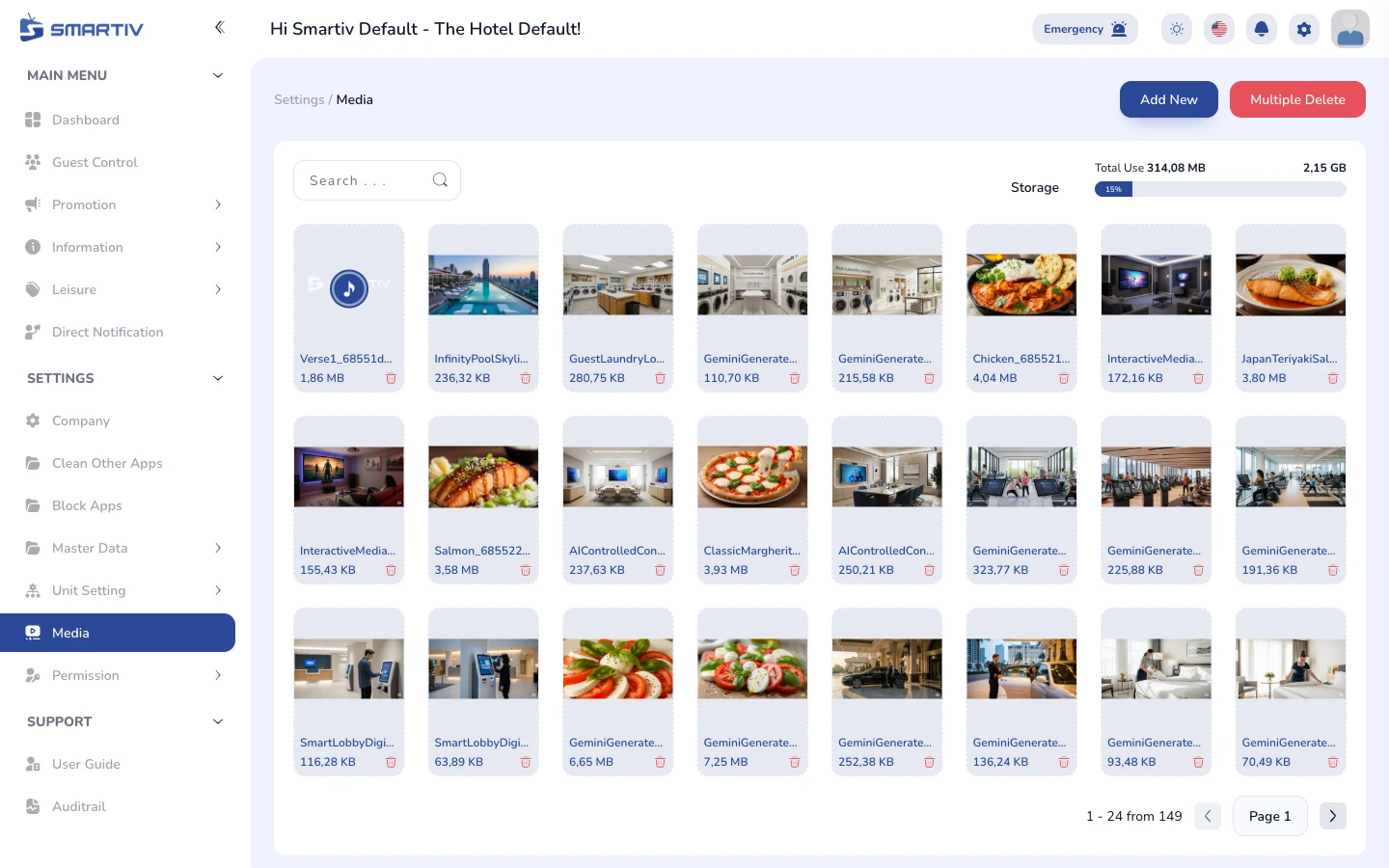
The Media library showing uploaded files.
NoteDirect URL:
/settings/mediaBrowse the Library
Review uploaded files
Files are shown as a grid with previews. Check the file size and format before reusing a file in other menus — large videos can be slow to load on older TVs.
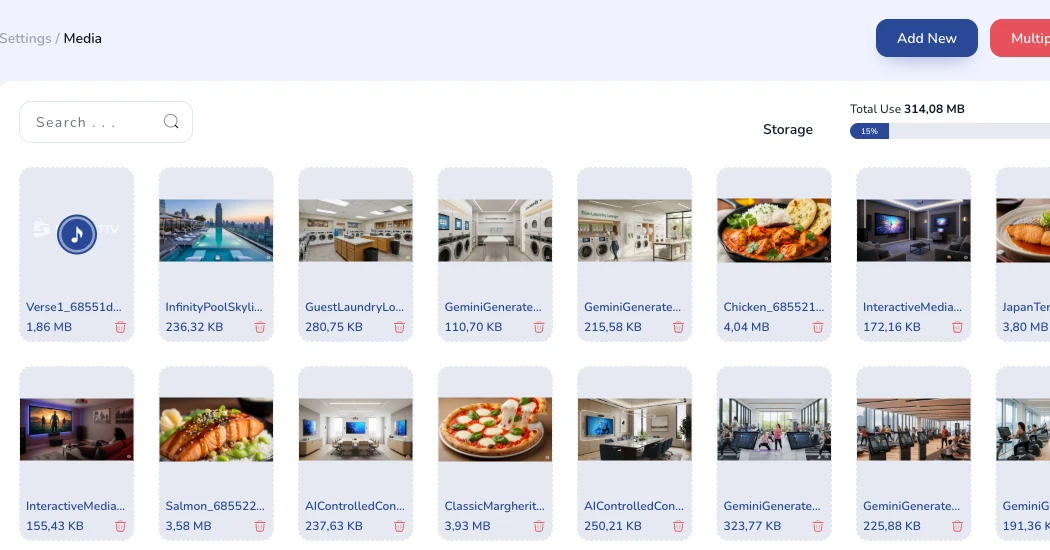
Grid of uploaded media files with previews.
Upload a New File
Add media to the library
Click the Upload button and select images or videos from your computer. Uploaded files become available to every other menu that uses media.

The Upload button in the top-right corner.
TipUse WebP/JPEG for images and MP4 (H.264) for videos for the best TV compatibility.
ImportantDeleting a file that is still used by a screensaver, signage, or wallpaper will break that content.