Overview
Configure your property name, logo, and business details. Follow the steps below to complete this task.
📂 Settings
Beginner
⏱ 3 min
📋 3 steps
Navigate to Company Settings
Open from sidebar
Click Settings › Company in the sidebar. This page contains your property core information displayed on guest-facing screens.
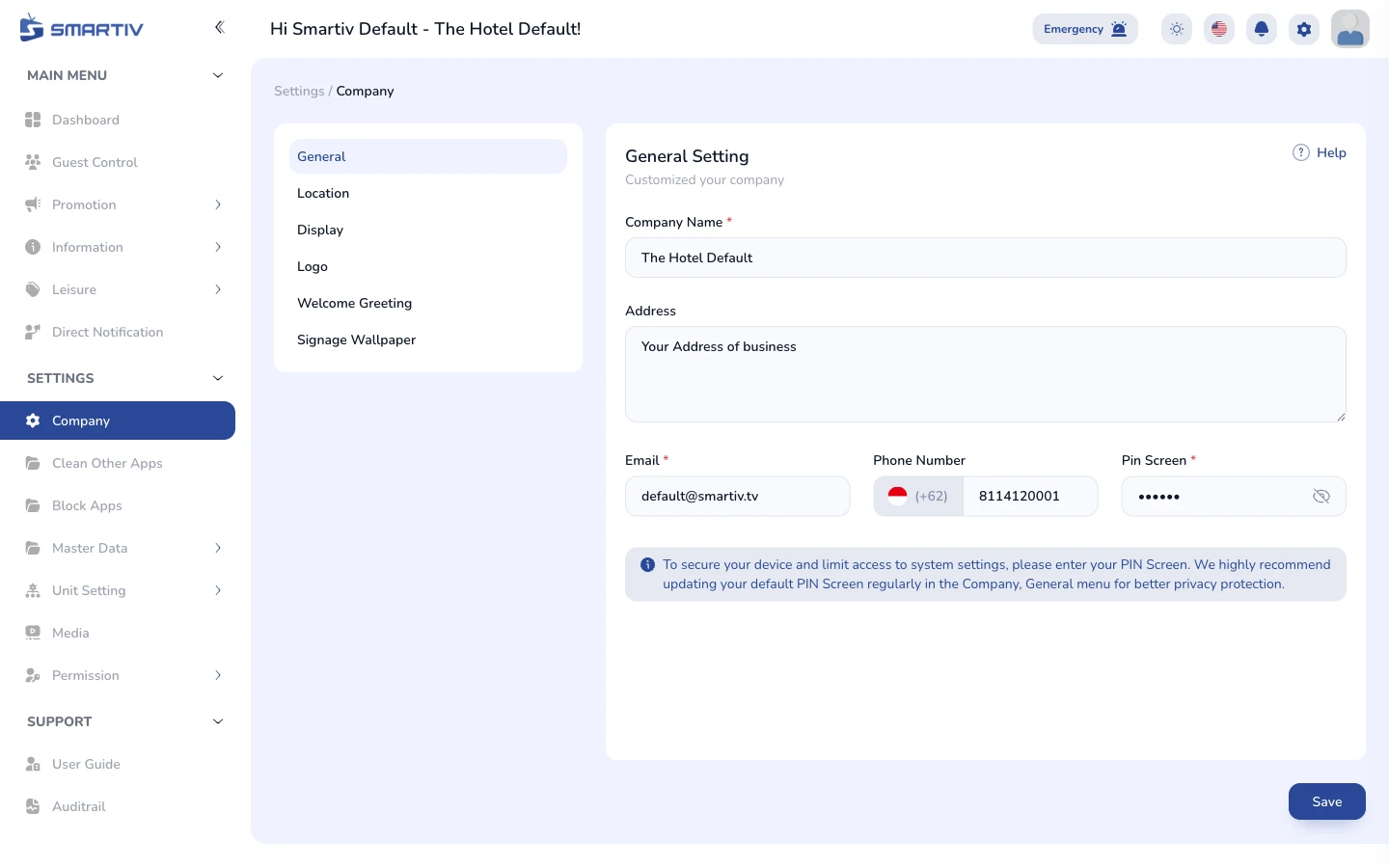
Company Settings page with form fields for property information.
Update Company Information
Edit the form fields
Fill in or update fields such as Company Name, Address, Phone, Email, and Logo. The logo appears on the TV interface for guests.
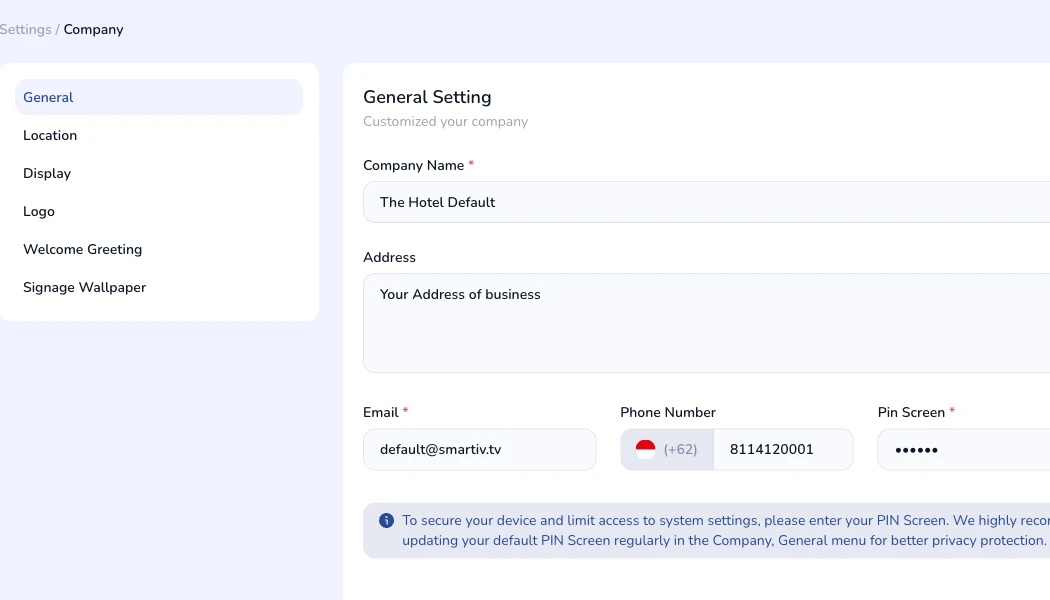
Company information form showing name, address, contact, and logo fields.
TipUpload a high-resolution PNG logo with a transparent background for best display quality.
Save Changes
Apply the updated settings
Click the Save button at the bottom of the form. Changes are applied immediately to all connected TV screens.
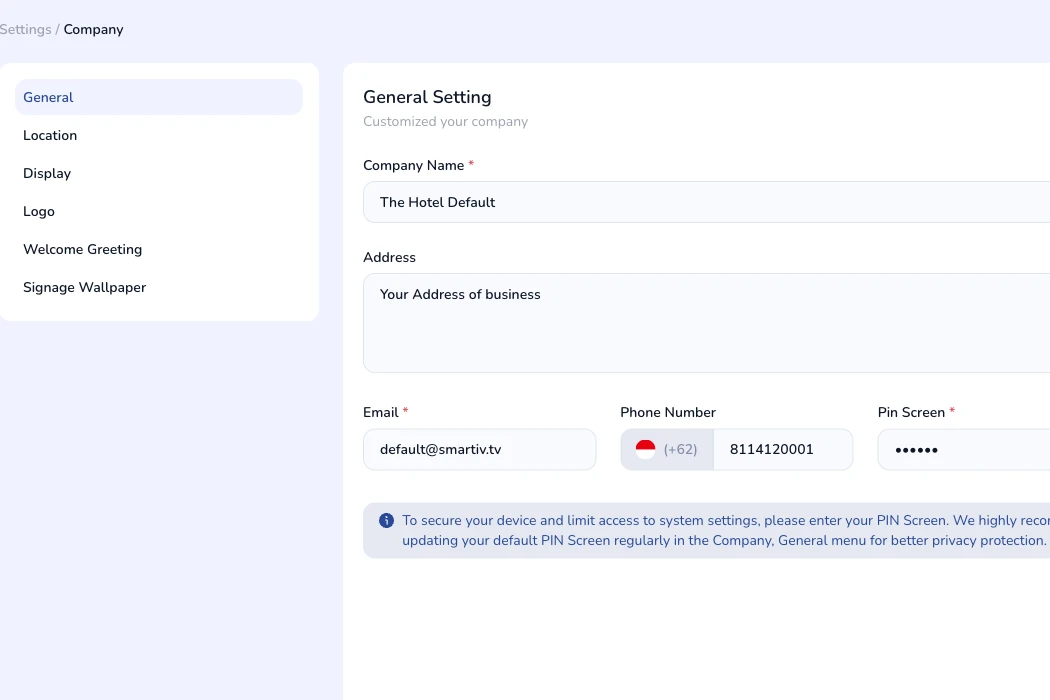
Save button at the bottom of the Company Settings form.
ImportantSaving company settings pushes updates to all active TV screens immediately.