Overview
Register and manage TV screen and device profiles. Follow the steps below to complete this task.
📂 Settings - Master Data
Beginner
⏱ 3 min
📋 4 steps
Navigate to Master Screen / Device
Open from sidebar
Expand Settings › Master Data and click Master Screen / Device. This page manages TV screens and physical devices registered in your property.
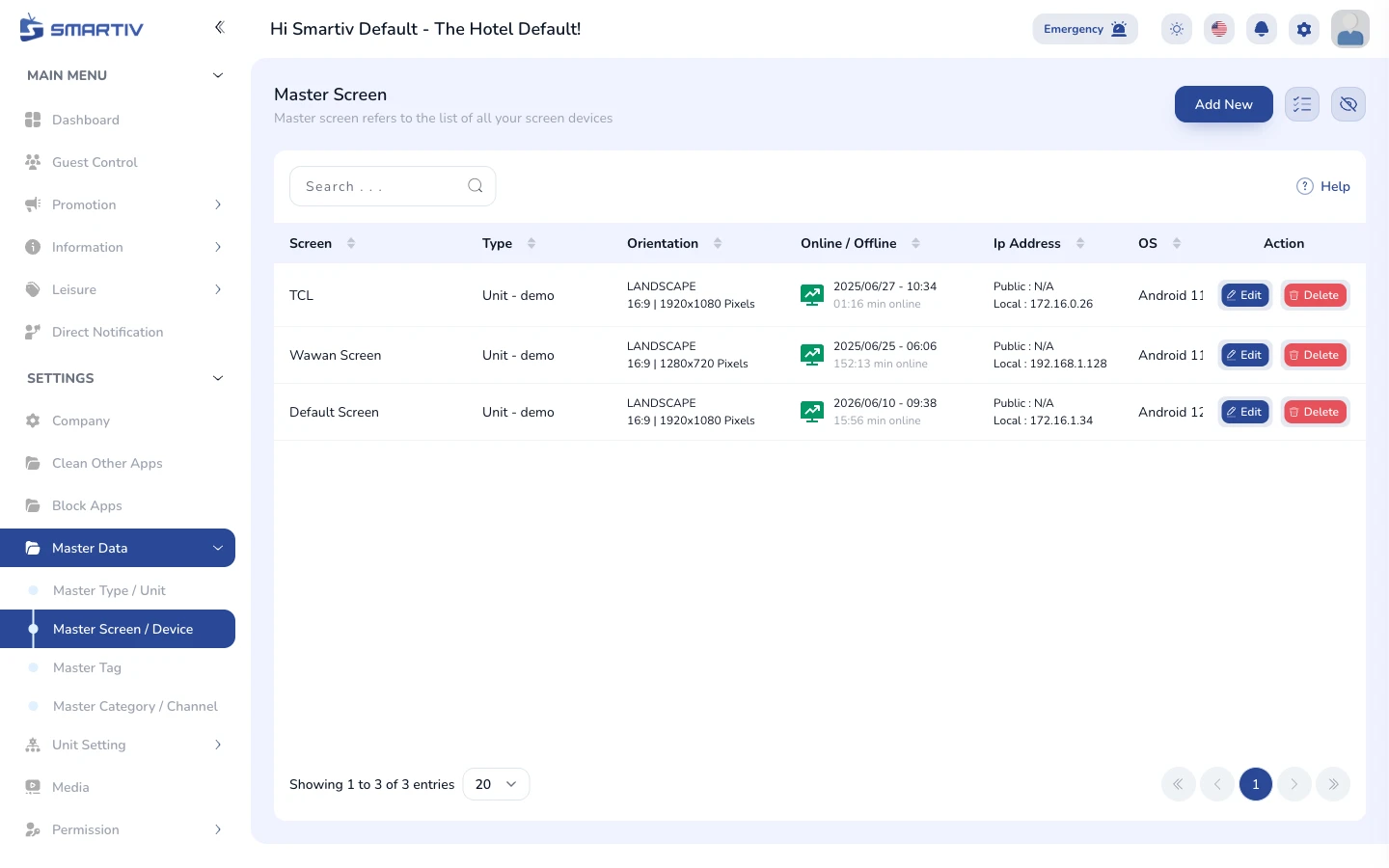
Master Screen / Device overview page.
Review the Device List
Understand the table columns
The table lists all registered devices. Each row shows device name, screen resolution, assigned unit, status, and action buttons.
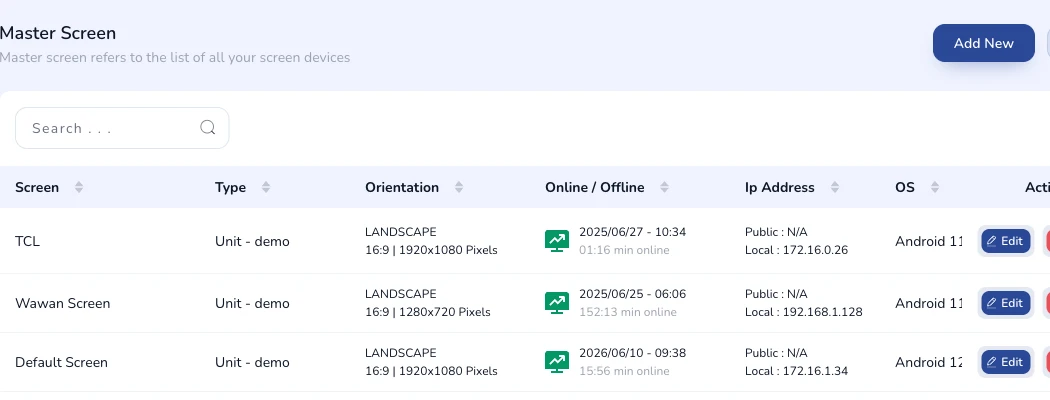
Device list table with name, resolution, unit, and status columns.
TipSort any column by clicking the column header arrow.
Add a New Device
Open the registration form
Click Add New in the top-right corner. The device registration modal opens. Fill in the required fields including device name and screen type.

Add New button highlighted.
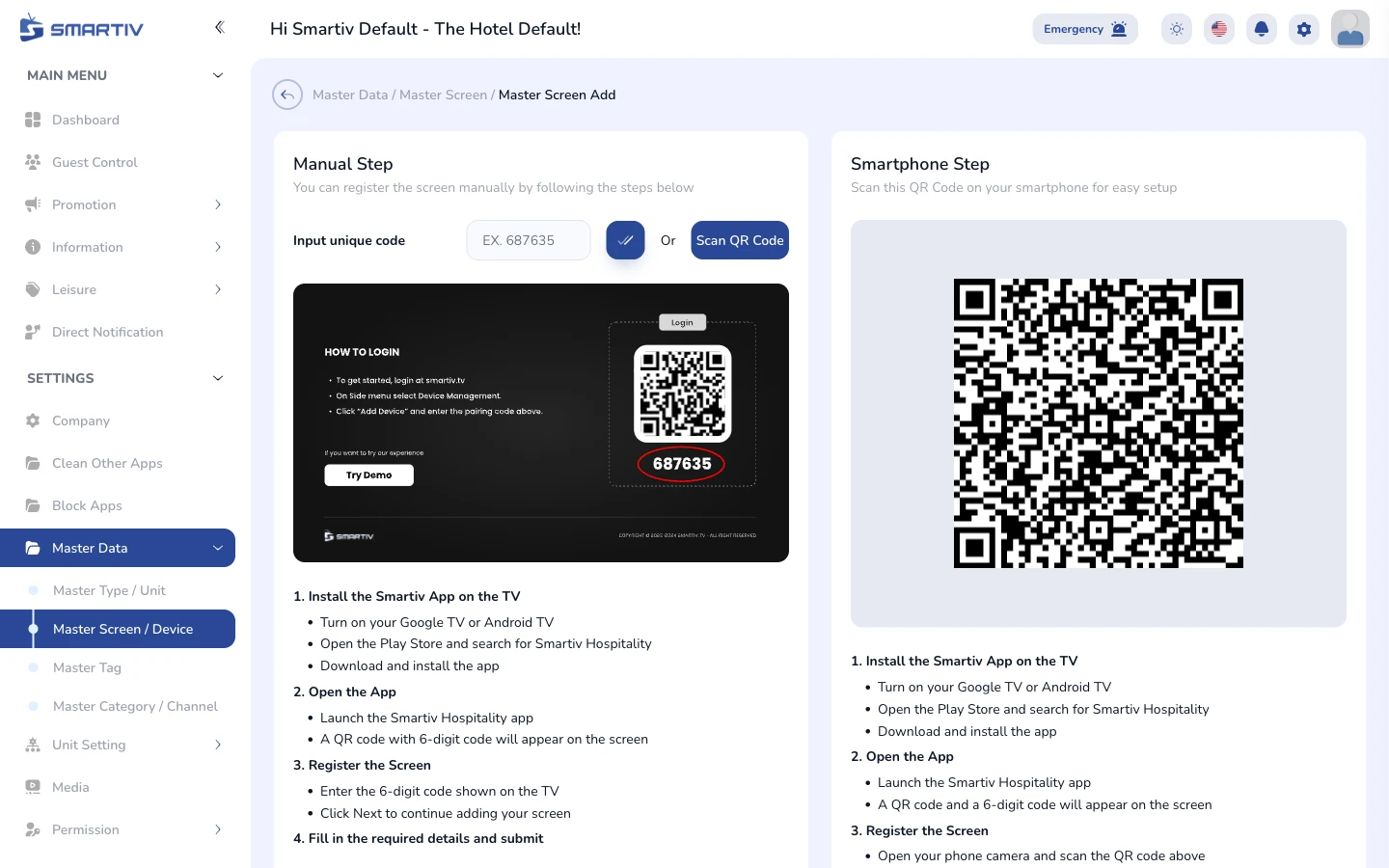
Empty device registration modal.
Save the Device
Submit and confirm
Complete all required fields and click Save. A success notification confirms the device has been registered.
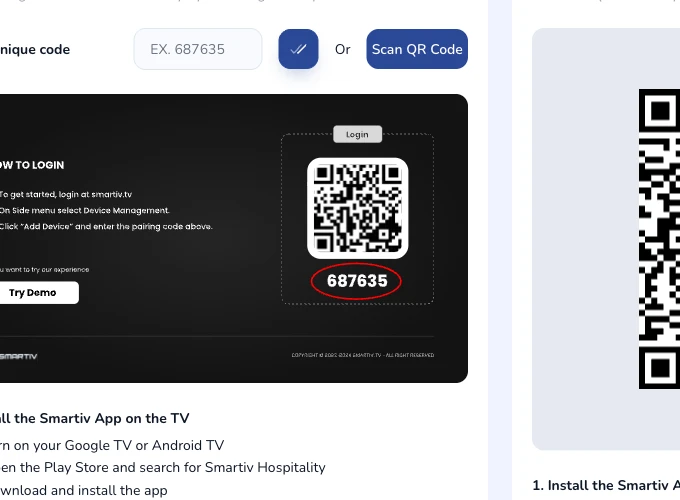
Filled device form ready to save.