Overview
Manage staff accounts and assign access roles. Follow the steps below to complete this task.
📂 Settings - Permission
Beginner
⏱ 3 min
📋 4 steps
Navigate to User Management
Open from sidebar
Go to Settings › Permission › User. This page lists all staff accounts with access to the CMS.
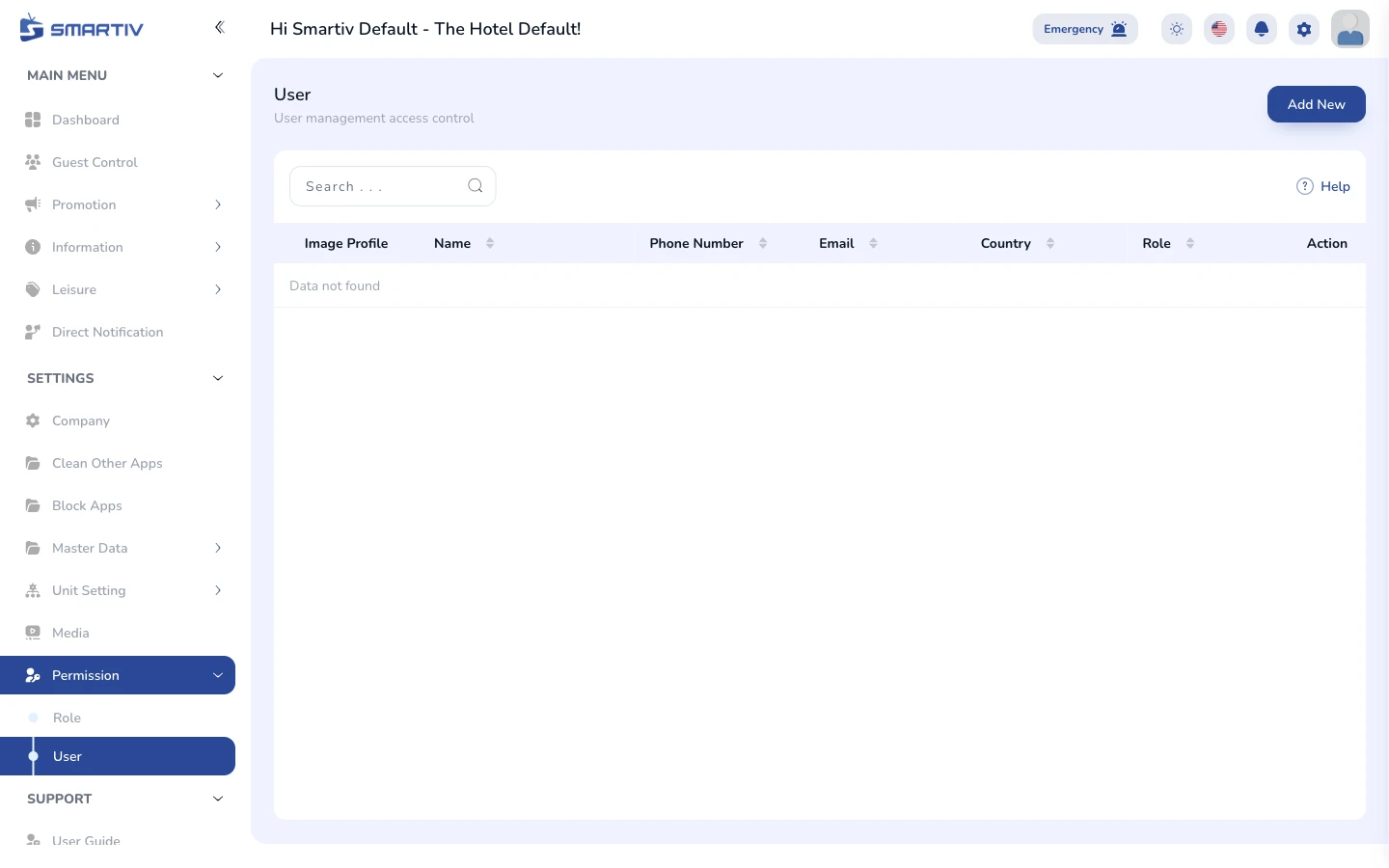
User management page listing all staff accounts.
Add a New User
Create a staff account
Click Add New or Invite. Enter the staff member name, email address, and select their role from the dropdown.

Add New button.
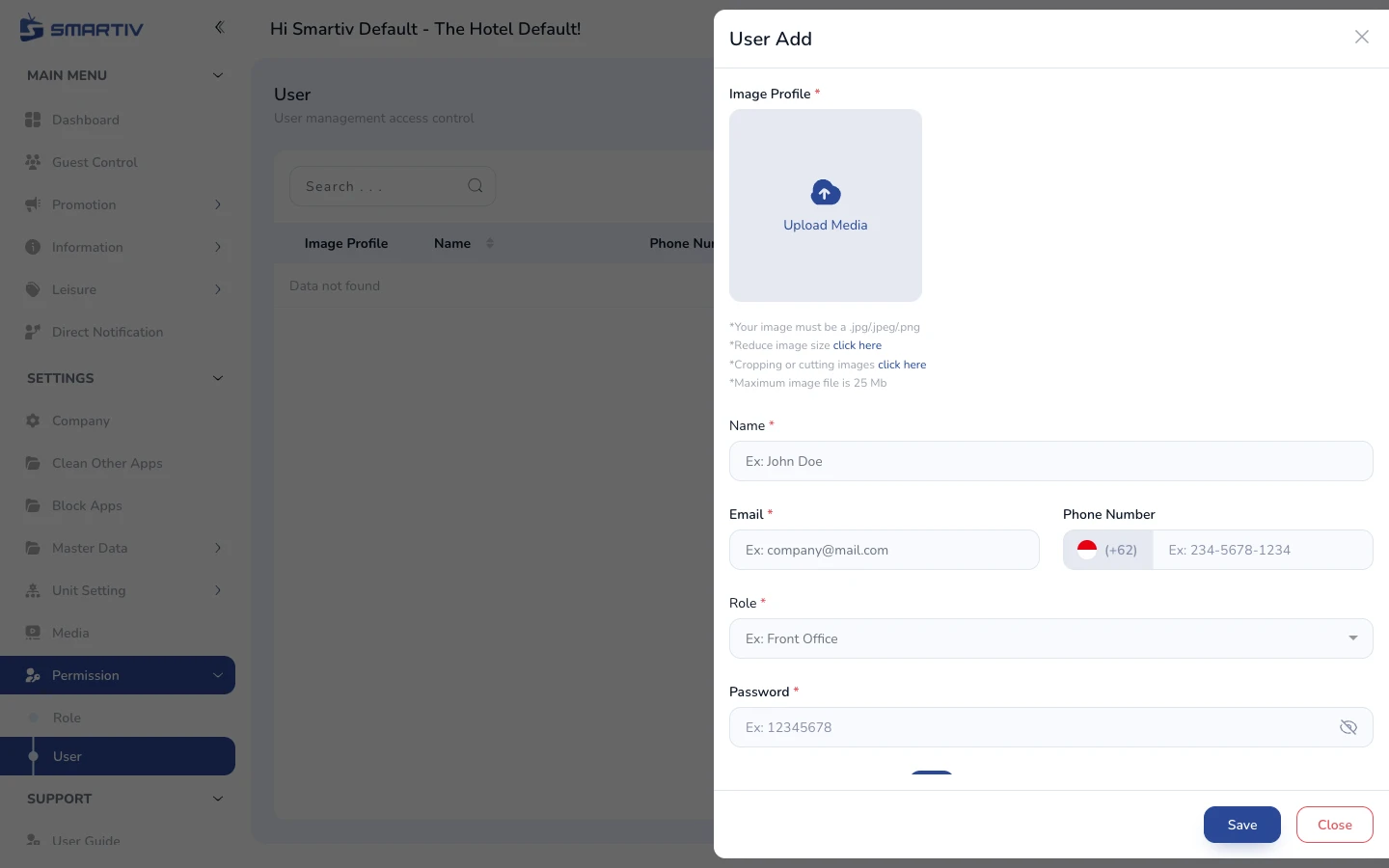
User creation form with name, email, and role fields.
NoteA verification or invitation email will be sent to the entered email address.
Assign a Role
Set access level
Select the appropriate role from the Role dropdown. The permissions defined in that role will be applied immediately.
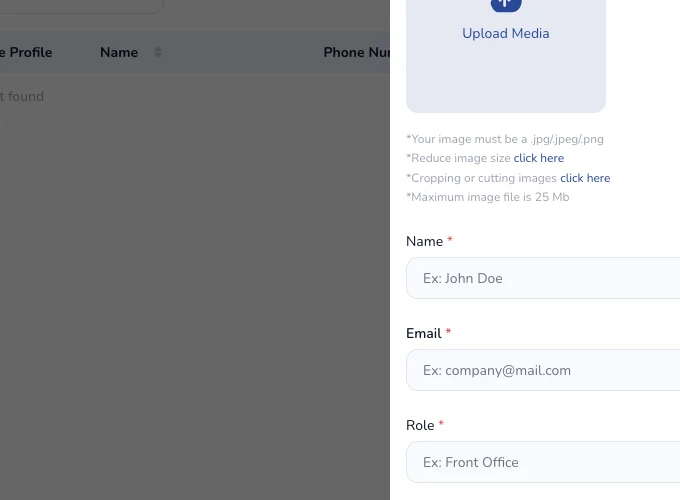
User form showing the Role dropdown with available roles to assign.
TipIf the required role does not exist yet, create it first in Permission › Role.
Save the User
Send invite and confirm
Click Save. The user account is created and an invitation is sent. They can set their password via the email link.