Overview
Create and manage staff access roles. Follow the steps below to complete this task.
📂 Settings - Permission
Intermediate
⏱ 4 min
📋 4 steps
Navigate to Role Management
Open from sidebar
Go to Settings › Permission › Role. Roles define what sections of the CMS each staff member can access.
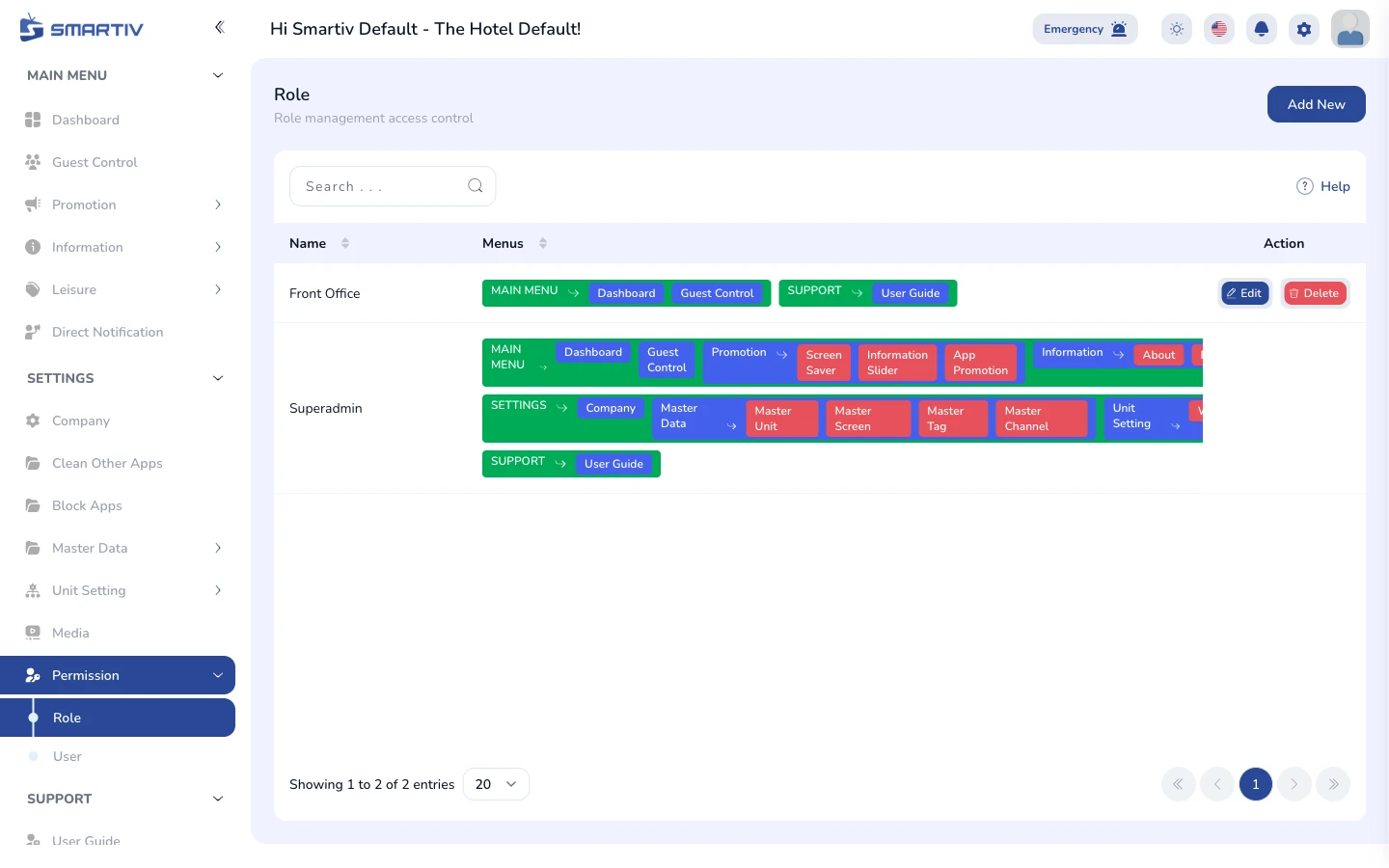
Role list page showing all existing roles.
Create a New Role
Open the role creation form
Click Add New. Enter a role name (e.g. Content Manager) and select which CMS modules this role can access.

Add New button.
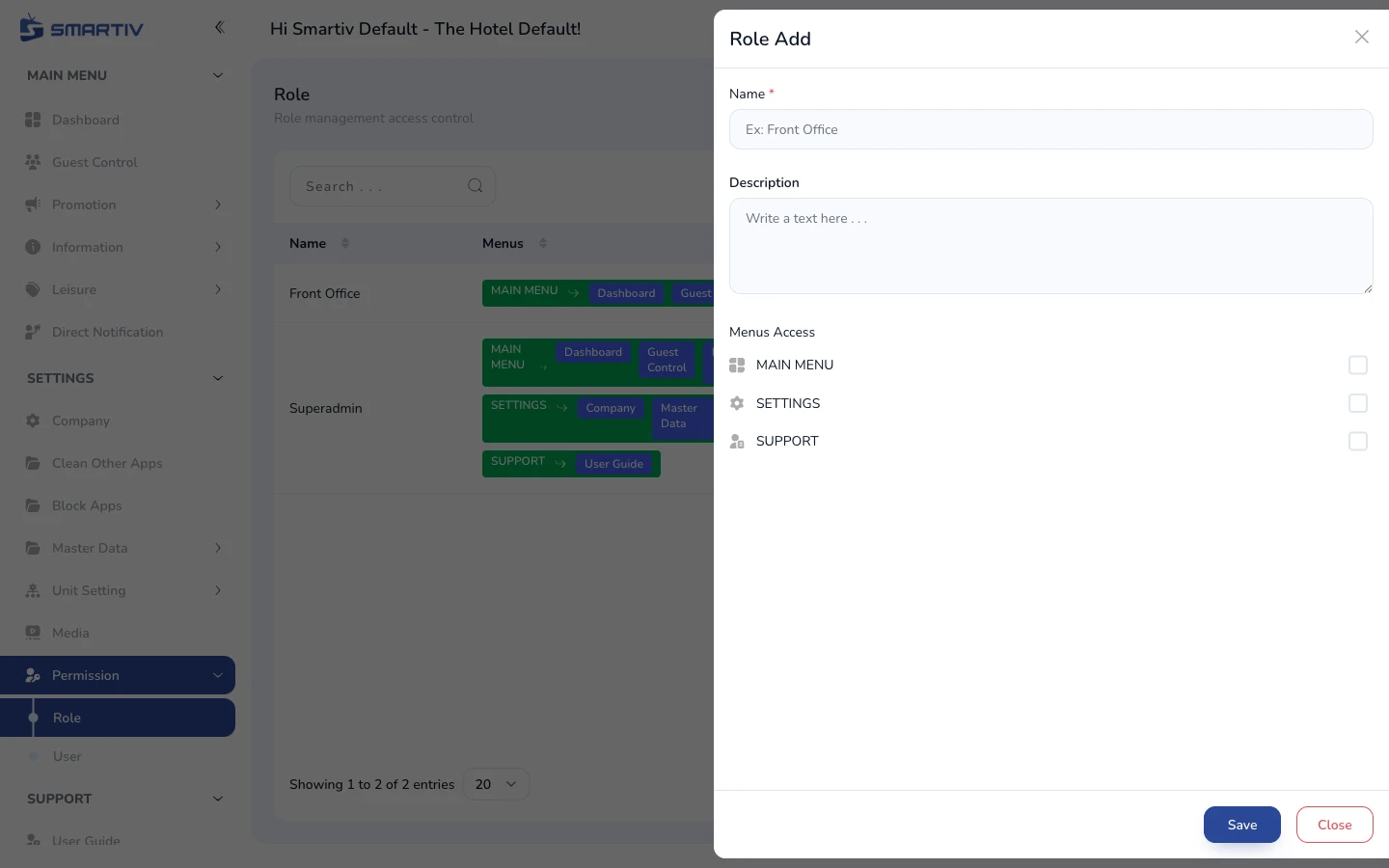
Role creation form with name and permission checkboxes.
NoteAt minimum, all staff roles should have access to Dashboard.
Assign Permissions
Select module access rights
Check or uncheck each module permission. You can grant View, Create, Edit, and Delete rights individually for each section.
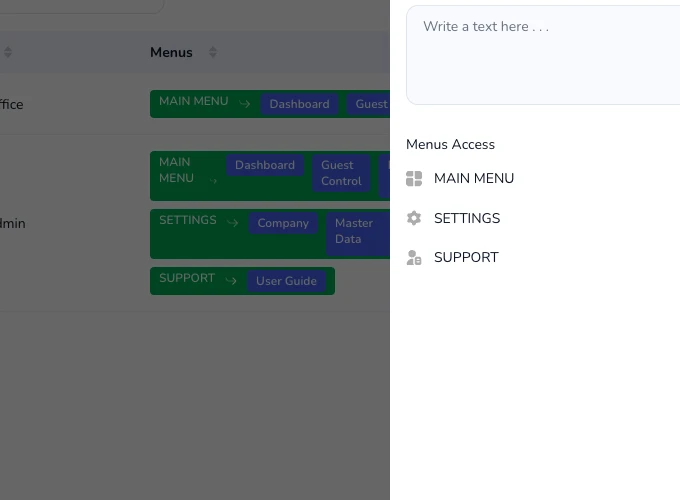
Permission matrix showing granular access controls per module.
TipCreate separate roles for "Admin", "Content Manager", and "Viewer" to follow least-privilege principles.
Save the Role
Confirm and apply
Click Save. The role is created and can immediately be assigned to users in the User management page.