๐Ÿ“˜ Step-by-Step Tutorial

Greeting

Manage the welcome greeting shown to guests on check-in

Module: Main Menu - Information
Difficulty: Beginner
2 min
4 steps

Overview

Manage the welcome greeting shown to guests on check-in. Follow the steps below to complete this task.

๐Ÿ“‚ Main Menu - Information Beginner โฑ 2 min ๐Ÿ“‹ 4 steps
Navigate to Greeting
Open the page from the sidebar

In the left sidebar, expand Information under Main Menu and click Greeting. This page manages the welcome greeting displayed on the TV when a guest checks in, shown to guests in the Information section of the TV.
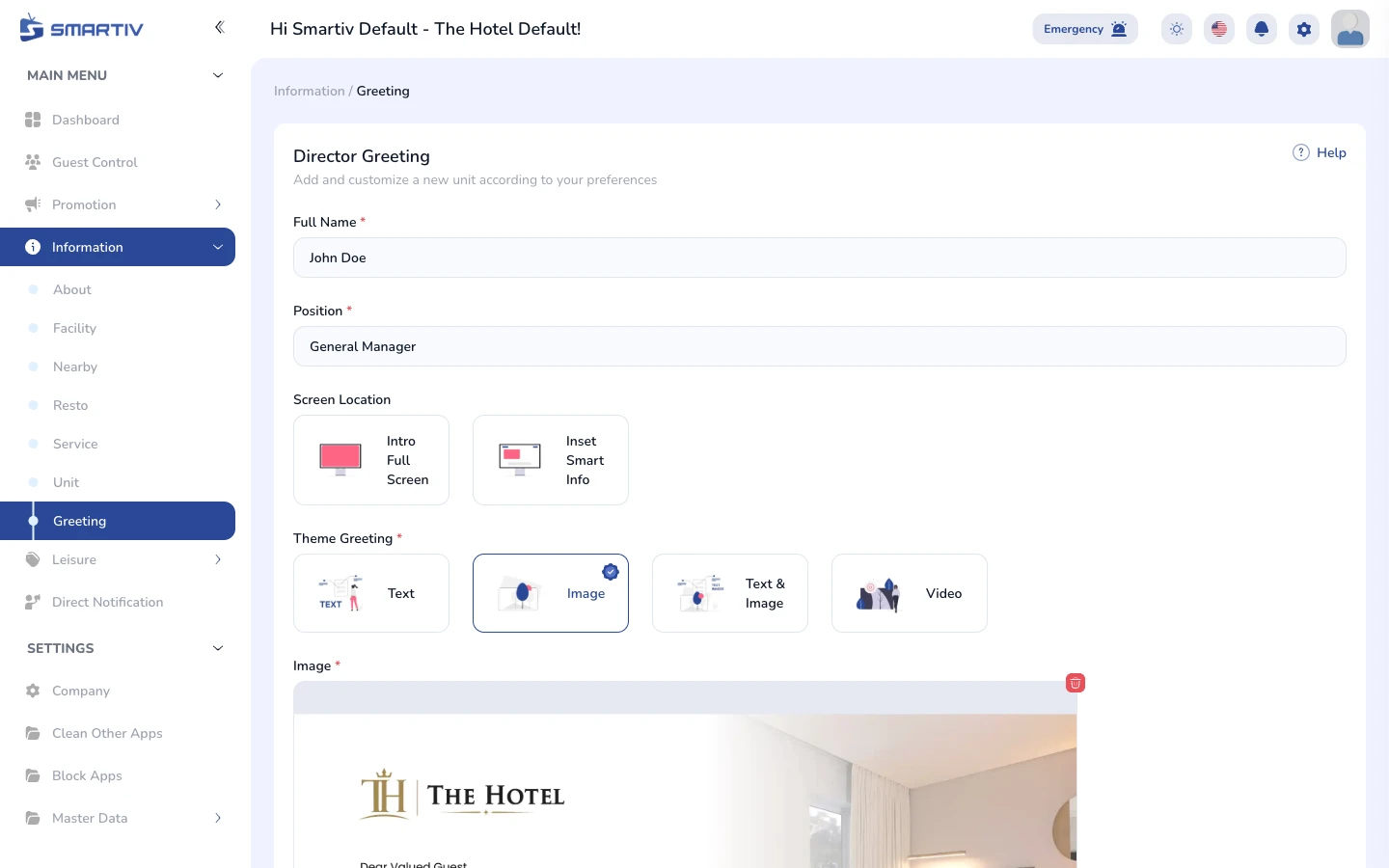
Screenshot 01-overview.webp
https://client.smartiv.tv/main-menu/information/greeting
The Greeting page showing the list of existing greetings.
โ„น๏ธ
NoteDirect URL: /main-menu/information/greeting
Understand the List
Learn what each entry shows

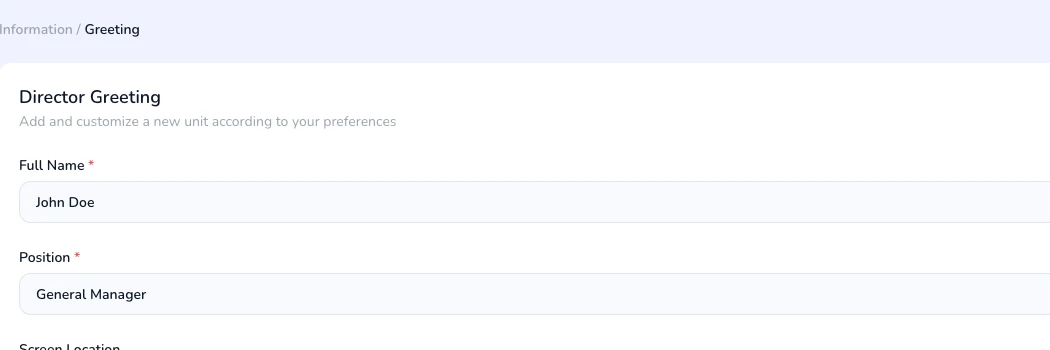
Each row shows a greeting with its name, preview, and status. The Action column contains the Edit and Delete buttons for each entry.
Screenshot 02-table-zoom.webp
https://client.smartiv.tv/main-menu/information/greeting
The Greeting list with its columns and action buttons.
๐Ÿ’ก
TipUse the Search bar at the top of the table to quickly find an entry by name.
Click "Add New"
Open the creation form

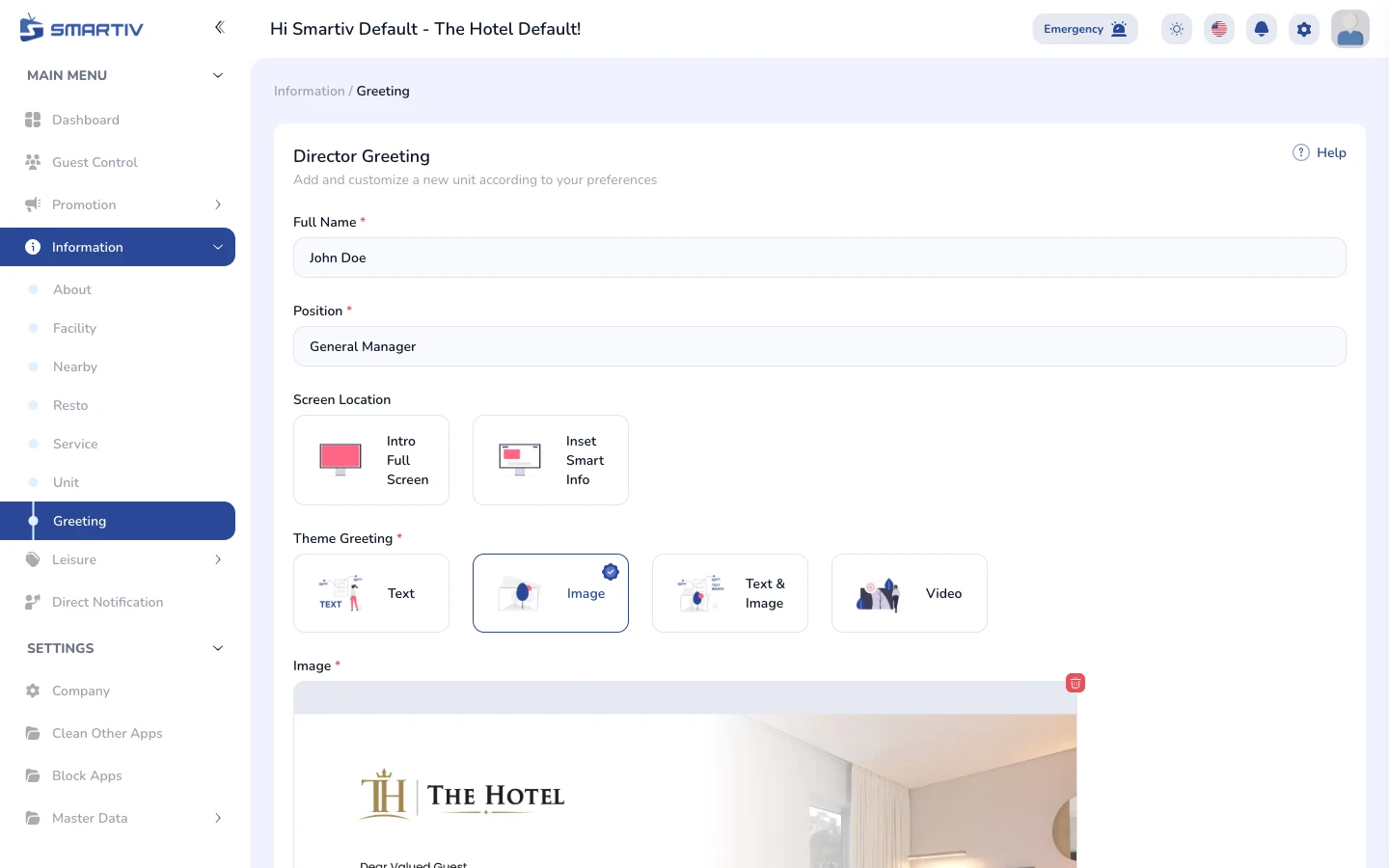
Click the Add New button in the top-right corner of the page. A modal dialog appears with the form fields to fill in.

Screenshot 03-add-new-btn.webp
https://client.smartiv.tv/main-menu/information/greeting
The "Add New" button in the top-right corner.
Screenshot 04-modal-empty.webp
https://client.smartiv.tv/main-menu/information/greeting
The empty creation form modal.
Fill In the Form and Save
Complete the fields and submit

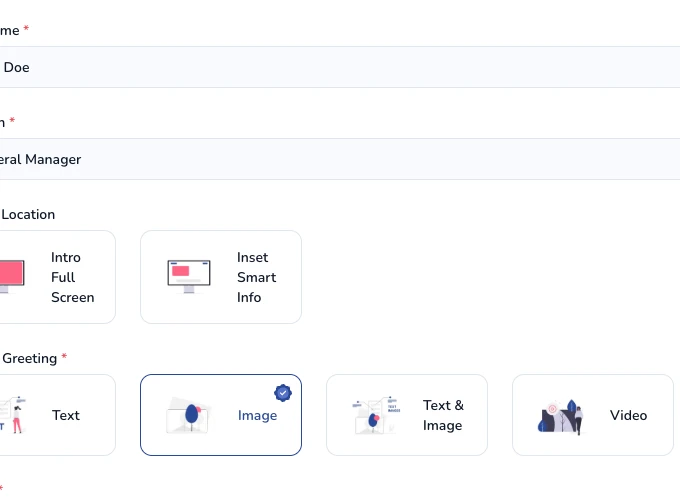
Enter the greeting title and message text. Personalisation placeholders (such as the guest name) are inserted automatically by the system. Click Save to store the new greeting. It appears in the list immediately and is pushed to the in-room TVs automatically.
Screenshot 05-modal-zoom.webp
https://client.smartiv.tv/main-menu/information/greeting
Close-up of the form fields ready to be filled in.